
The quickest way to keep every referee in the loop is to know who has not had feedback in a while. RefereeHub tracks that for you and puts it where you start each night.
1. Start on the dashboard
The On tonight card on your dashboard shows who to look at first. Until you upload a game sheet, it lists the referees who are due for feedback, with their grade, a red Due pill, and how long ago they last had feedback.
You can swap that list for tonight's appointed referees: choose Upload sheet, export tonight's appointments from your booking system, and drop the .xlsx file in. Referees are matched by name, and anyone the app can't find is listed rather than added.
2. Find them on the Referees page, and read their record
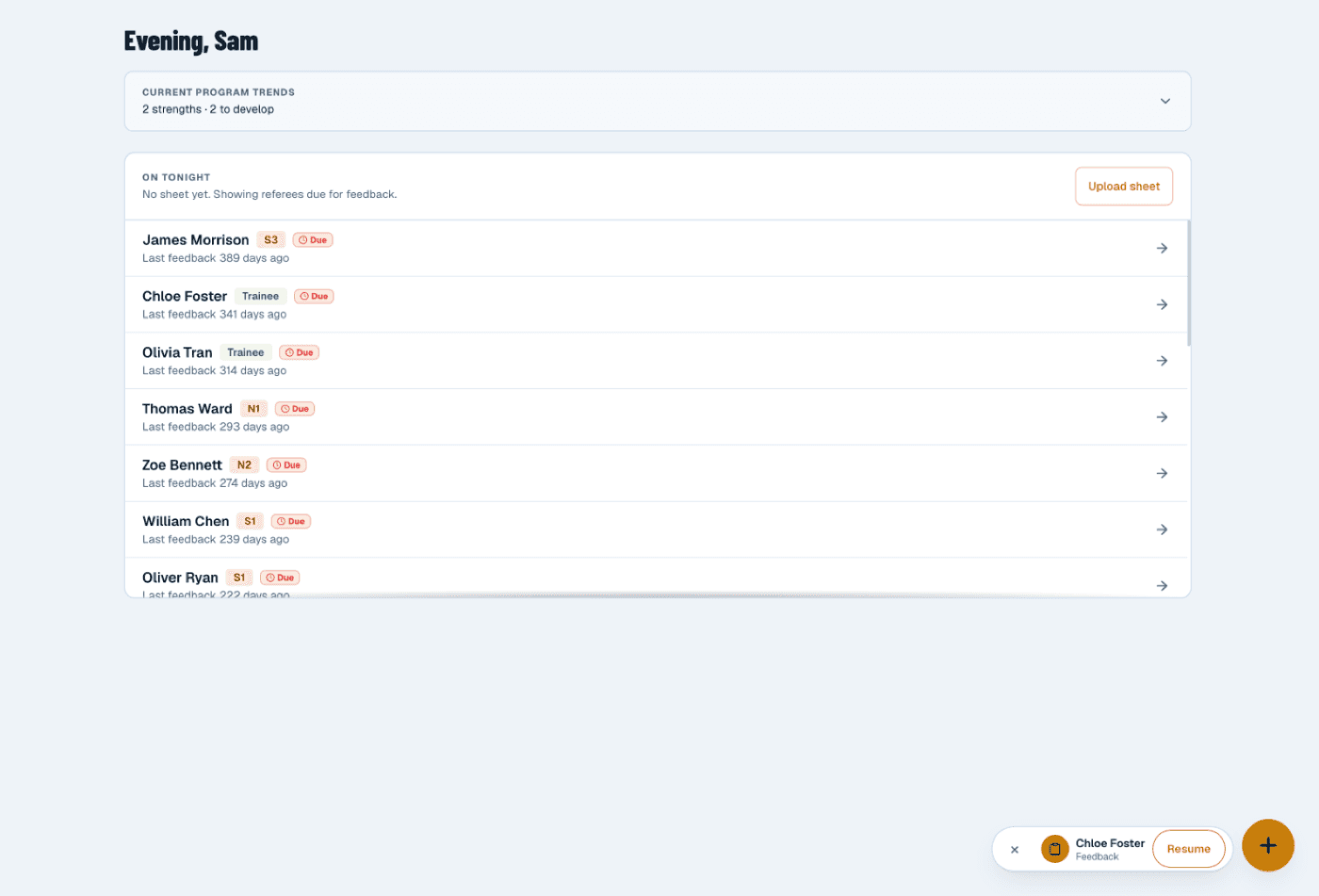
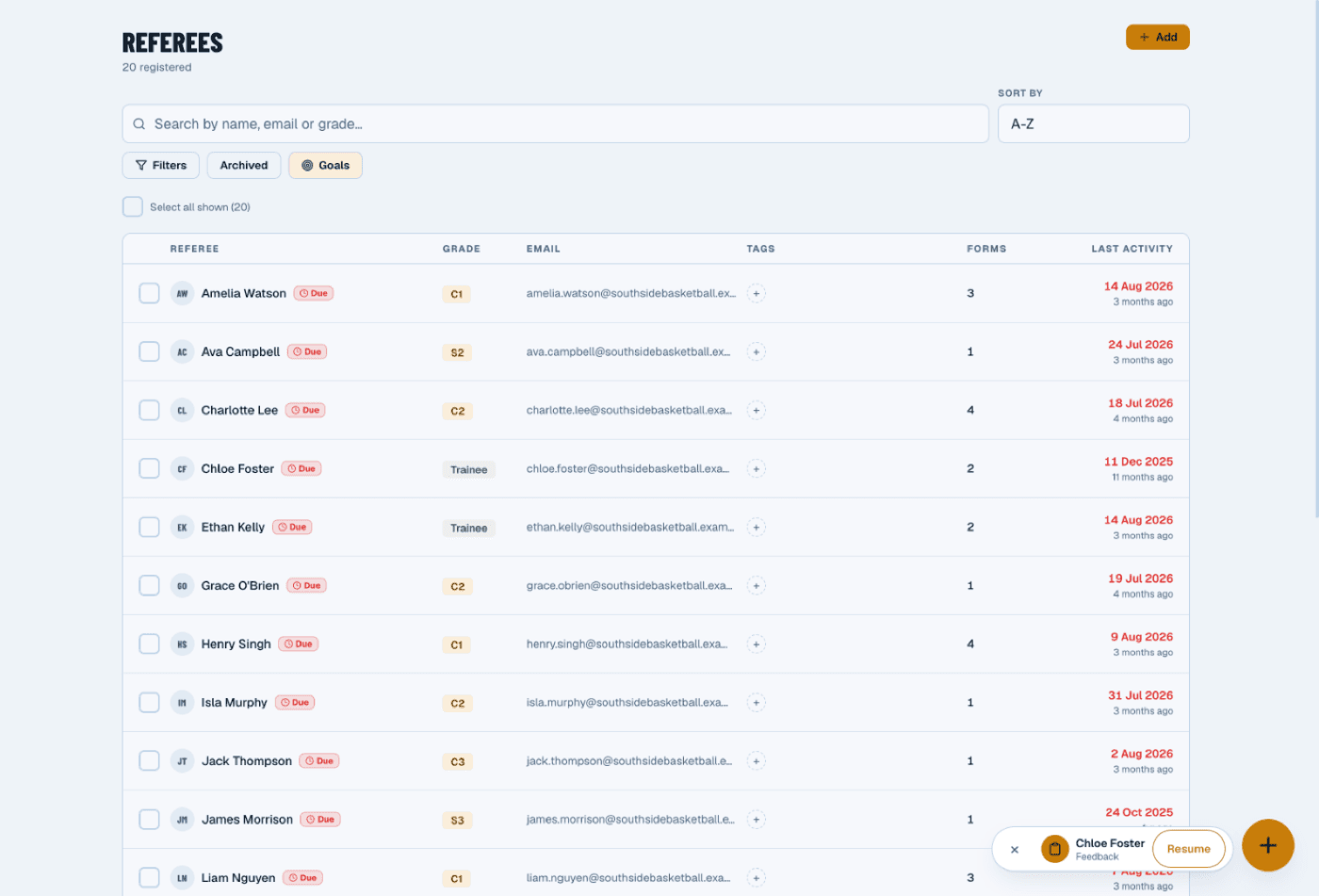
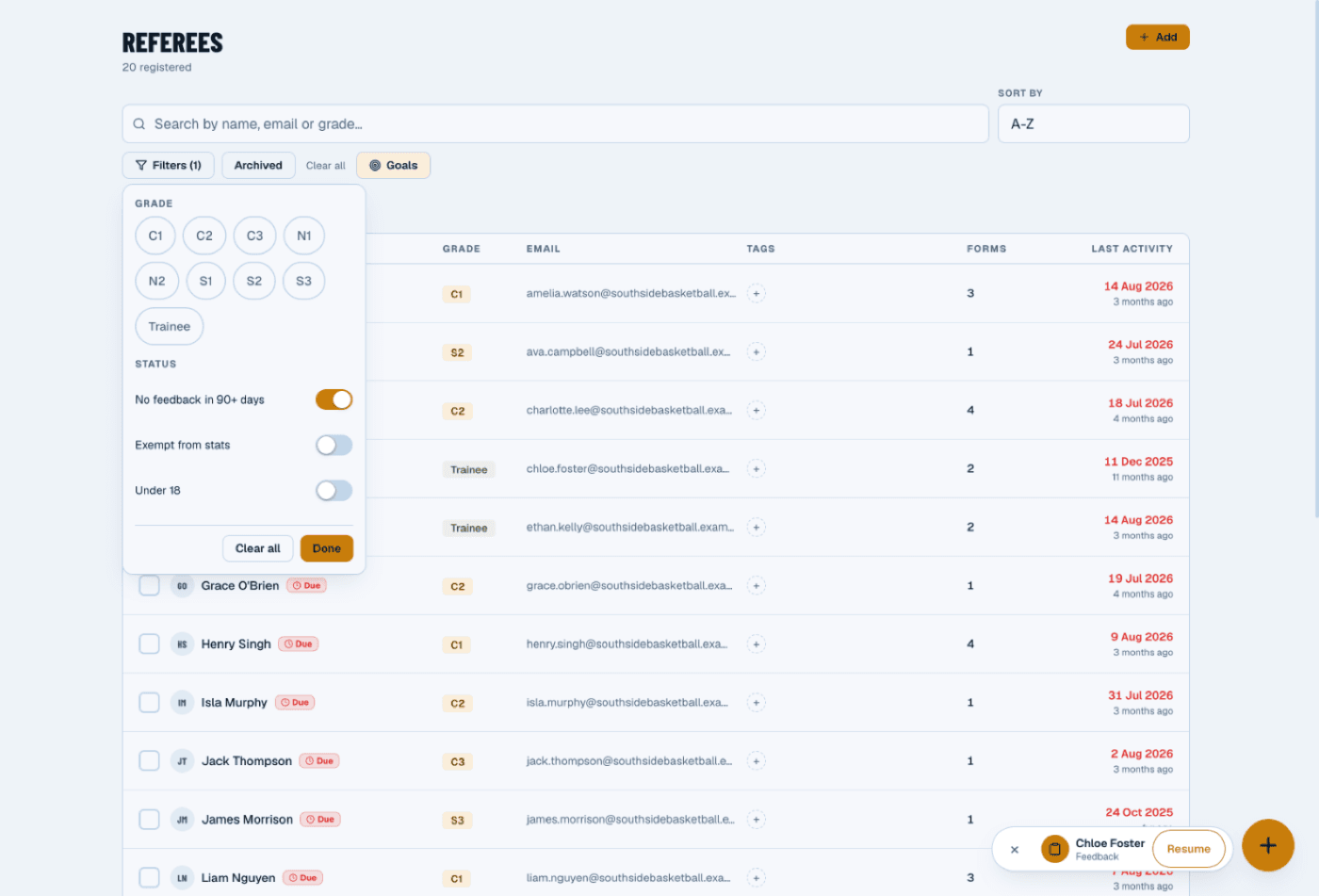
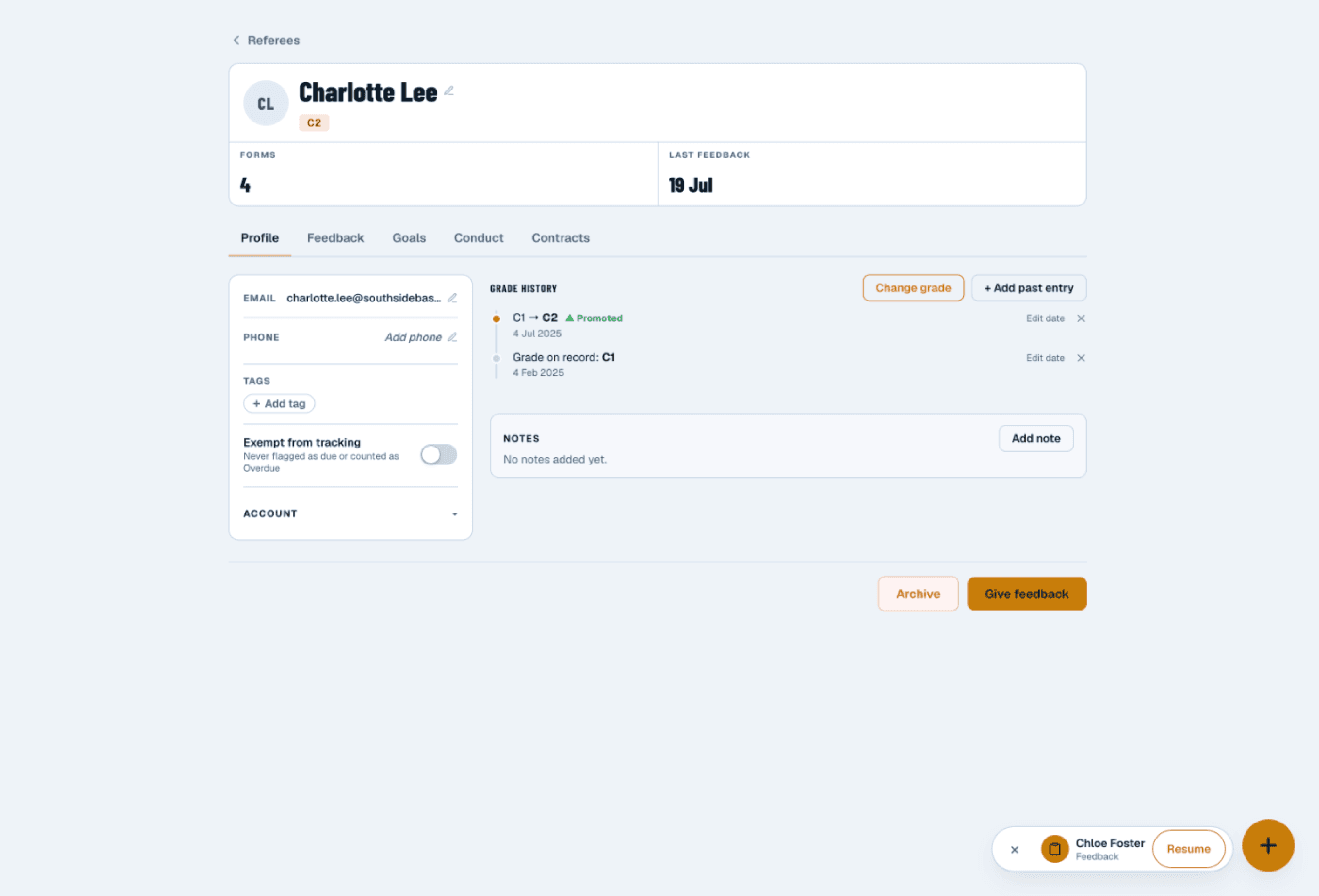
On tonight lists the referees who are due, each with a red Due pill and the days since their last feedback.
What the Referees page shows
Sort the list A–Z, by Most Overdue, or by Grade. Dates turn red when a referee is overdue. The Filters panel narrows the list by grade, or by status: no feedback in 90+ days, exempt from stats, or under 18.
Inside a profile
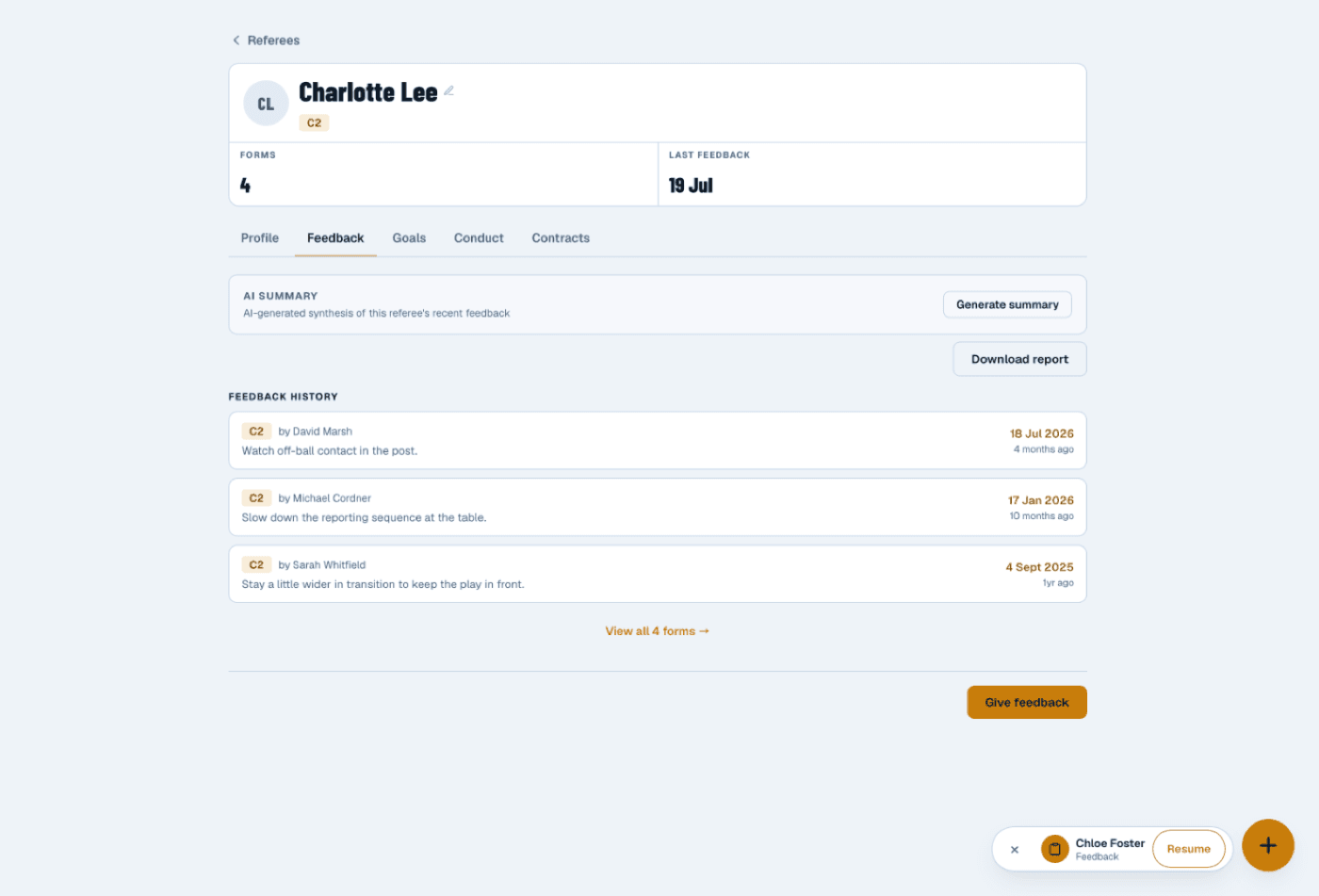
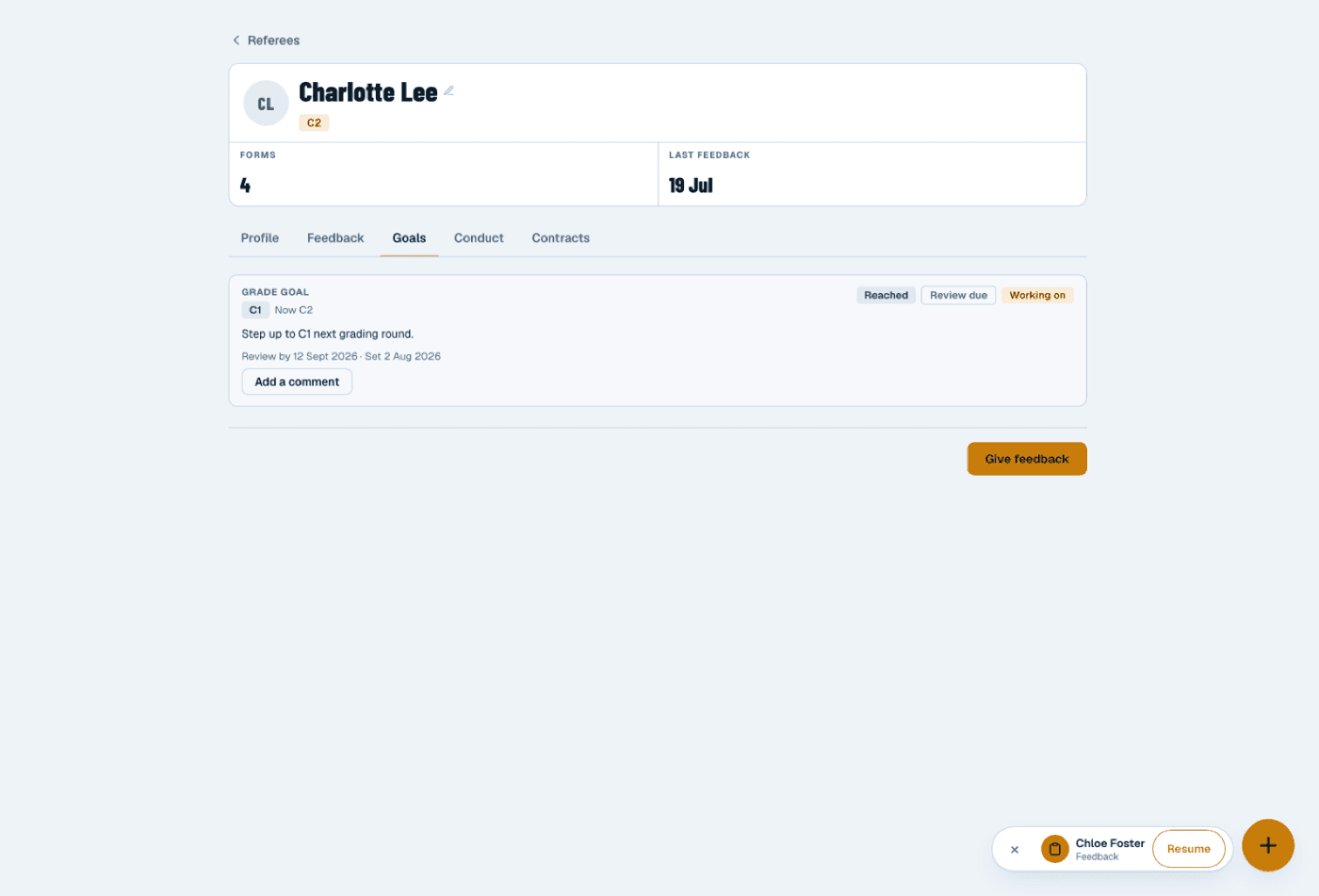
The Profile tab holds email, phone, tags and the grade history, with a Change grade button and room for notes. The Feedback tab adds an AI summary of recent feedback, a Download report button, and the feedback history. The Goals tab shows each goal's review date and status. A Give feedback button sits at the bottom of every tab.
3. Decide what counts as due
A referee is due when they have gone longer than your organisation's limit without feedback, or have never had any. Pick the limit under Admin → Org Settings → Feedback setup → Mark referees as due for feedback: after 30, 60 or 90 days, or off.
Referees who are exempt from tracking are never flagged. Switch that on from their profile, or when you add them.
4. Chase from Insights
Admin → Insights → Overview has a Needs attention card: the share of your tracked referees who got feedback in the last 90 days, and the referees to chase this week.