Guide

Control what referees see and when

Choose whether feedback needs approval, what each form sends referees, what educators can read, and how to coach an educator without the referee seeing it.

Updated 17 November 20262 min read

Feedback goes to the people it is about, so it helps to be deliberate about what reaches them and when. Four settings and one tool in RefereeHub give admins that control.

1. Choose what each form sends

Each form has a setting called Referees receive. You can send referees everything, which is the written feedback and the scores, or the written feedback only.
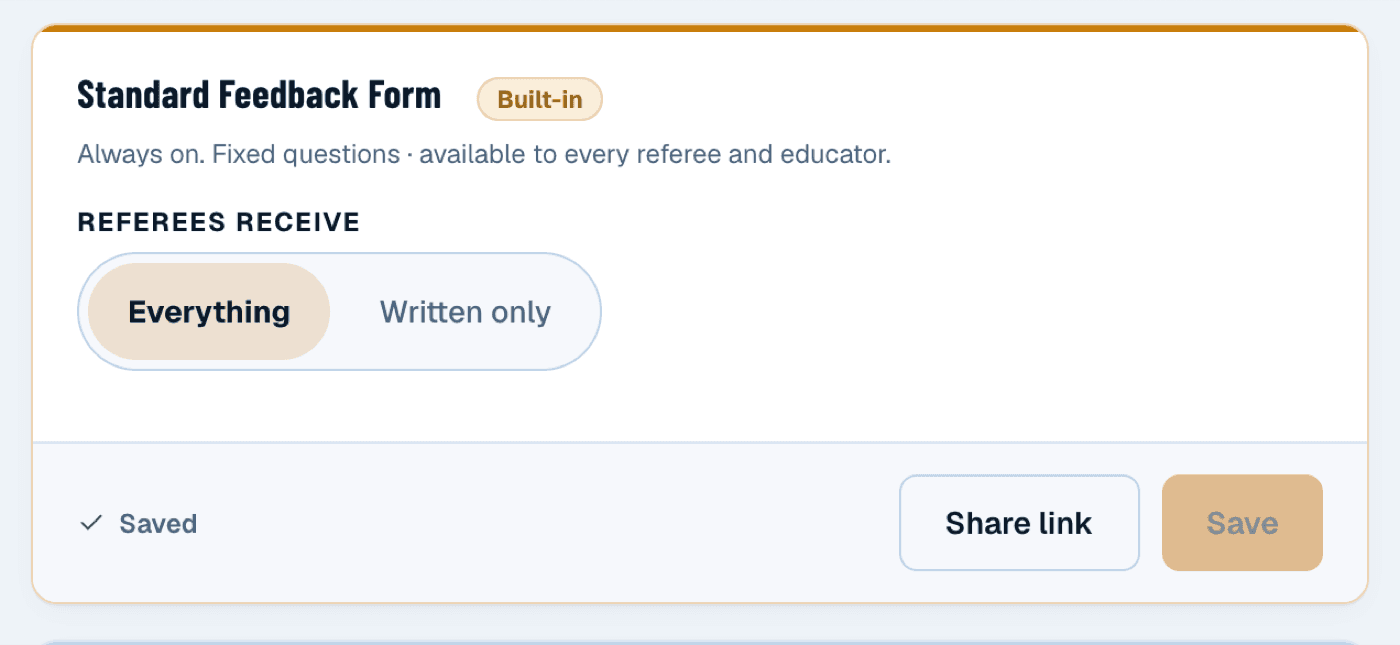
Referees receive: everything or written only
In **Admin → Forms**, pick **Everything** or **Written only** for each form, then save.

In Admin → Forms, pick Everything or Written only for each form, then save.

The change applies from the moment you save it. It does not rewrite feedback that has already gone out.

2. Hold feedback for admin approval

Turn on Require admin approval and feedback from educators is held for an admin to review before it goes to the referee. Feedback from admins is approved automatically.

  1. Open Admin → Org Settings.
  2. Expand Feedback setup.
  3. Under Feedback workflow, switch on Require admin approval.

Insights counts approved feedback only, so held feedback does not change a referee's averages until it is approved.
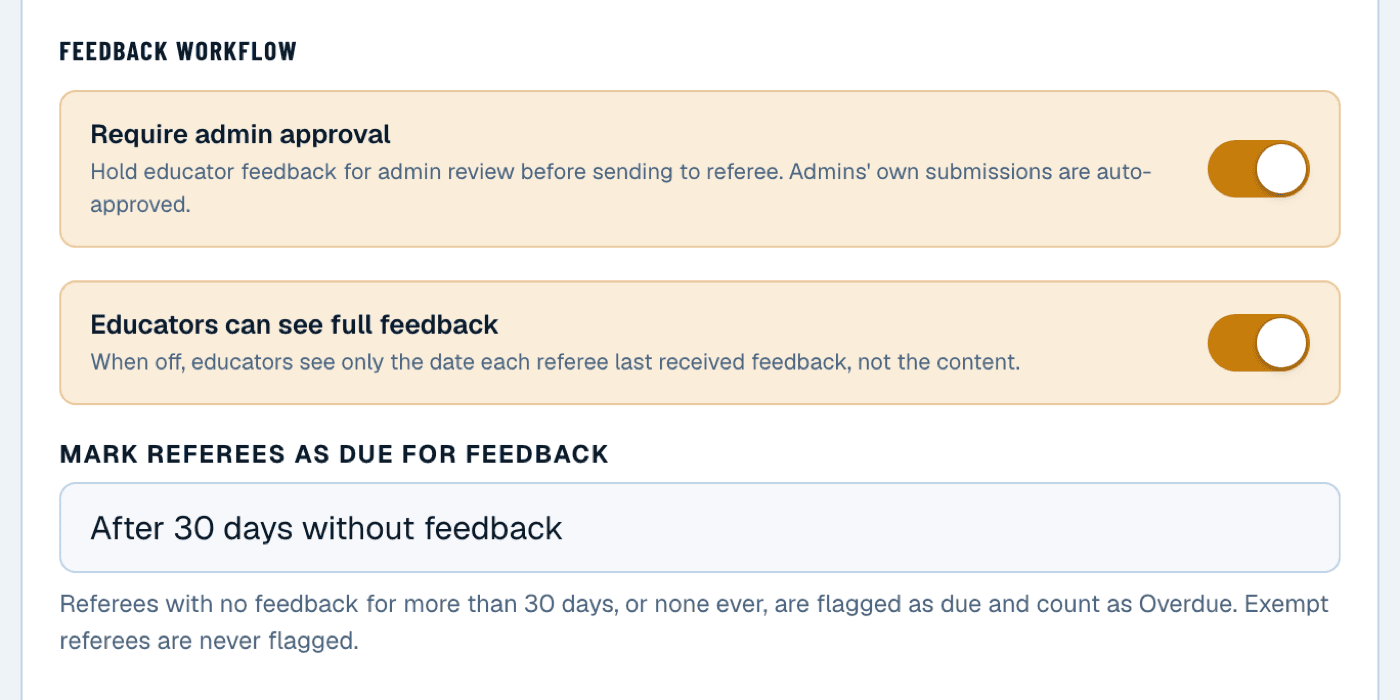
Feedback workflow settingsStep 1 of 2
**Require admin approval** holds educator feedback for review before it is sent to the referee.
1

Require admin approval holds educator feedback for review before it is sent to the referee.

3. Decide what educators can read

With Educators can see full feedback switched off, educators see only the date each referee last received feedback, not what was said. That suits programs where only admins should read the detail.

4. Coach the educator, not the referee

Open any submitted form from the Feedback page and scroll to Coaching notes. Use it to leave a note for the educator about how the form was written. Only you, other admins and that educator can read it. The referee never sees it.
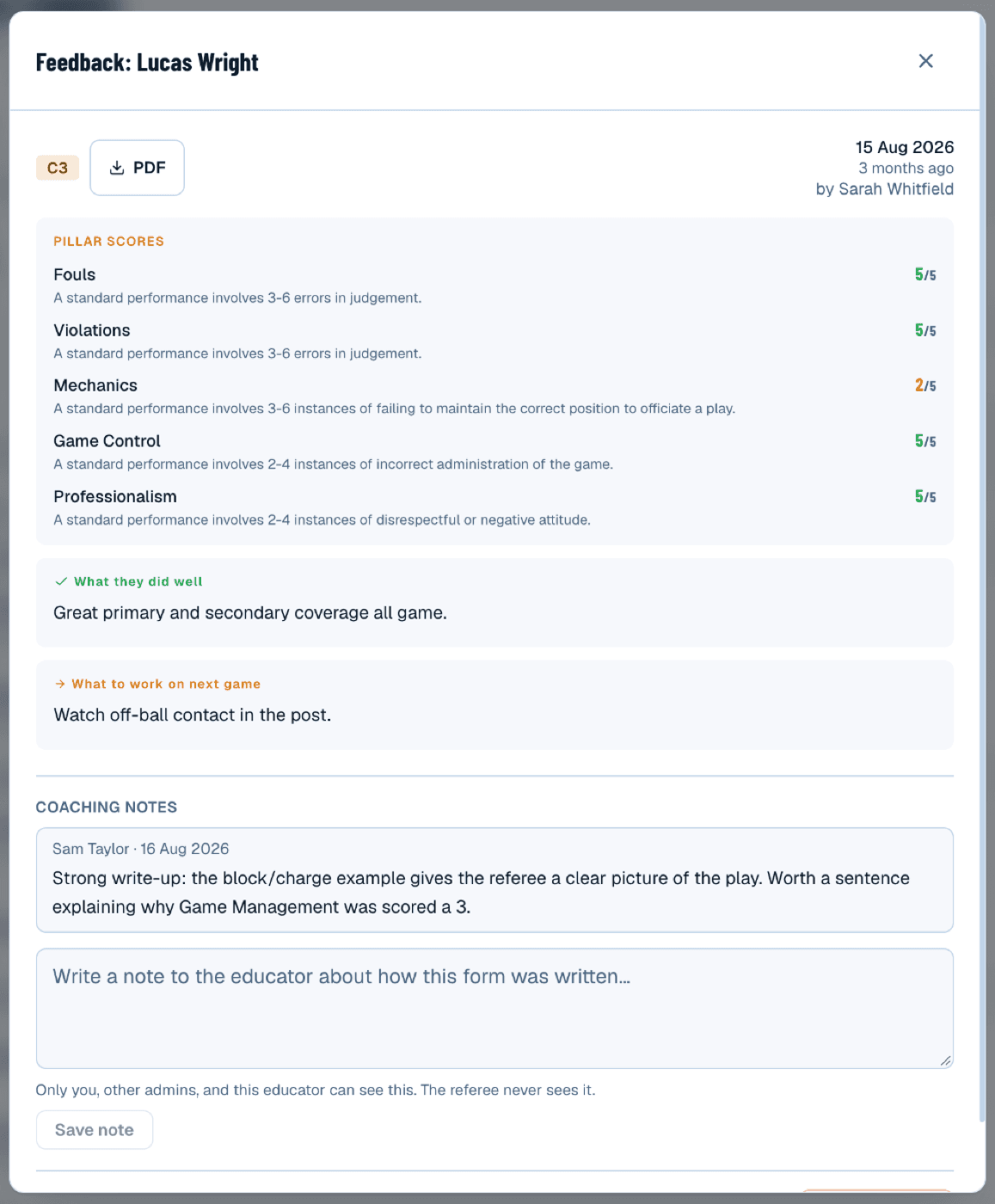
Coaching notes on a submitted form
Write a note to the educator about how the form was written, then **Save note**. The referee never sees it.

Write a note to the educator about how the form was written, then Save note. The referee never sees it.

Tip: The names and note in this screenshot are sample text.

What referees see after approval

Approved feedback appears in the referee's portal, and they are told by email or phone notification, as they choose. See What your referees see in their portal for what is waiting for them there.

Ready to see RefereeHub in action?

Book a walkthrough with your association.

“RefHub has been a great addition to our program, and I genuinely think having access to a tool like this improves the experience for everyone who's a part of it.”

C

Con

Admin

Ready to see RefereeHub in action?

Book a walkthrough with your association.

“RefHub has been a great addition to our program, and I genuinely think having access to a tool like this improves the experience for everyone who's a part of it.”

C

Con

Admin

Ready to see RefereeHub in action?

Book a walkthrough with your association.

“RefHub has been a great addition to our program, and I genuinely think having access to a tool like this improves the experience for everyone who's a part of it.”

C

Con

Admin

RefereeHub

RefereeHub helps sporting bodies manage, assess and develop their referees: one record every role trusts.

Product

Apple, the Apple logo and iPhone are trademarks of Apple Inc., registered in the U.S. and other countries. App Store is a service mark of Apple Inc., registered in the U.S. and other countries.