
Getting everyone into RefereeHub takes a few minutes. You can add referees one at a time, or all at once from a spreadsheet, and invite the educators who will be writing feedback.
1. Add a referee
Open Referees and choose + Add at the top right. The menu has two options: Add a referee and Upload CSV.
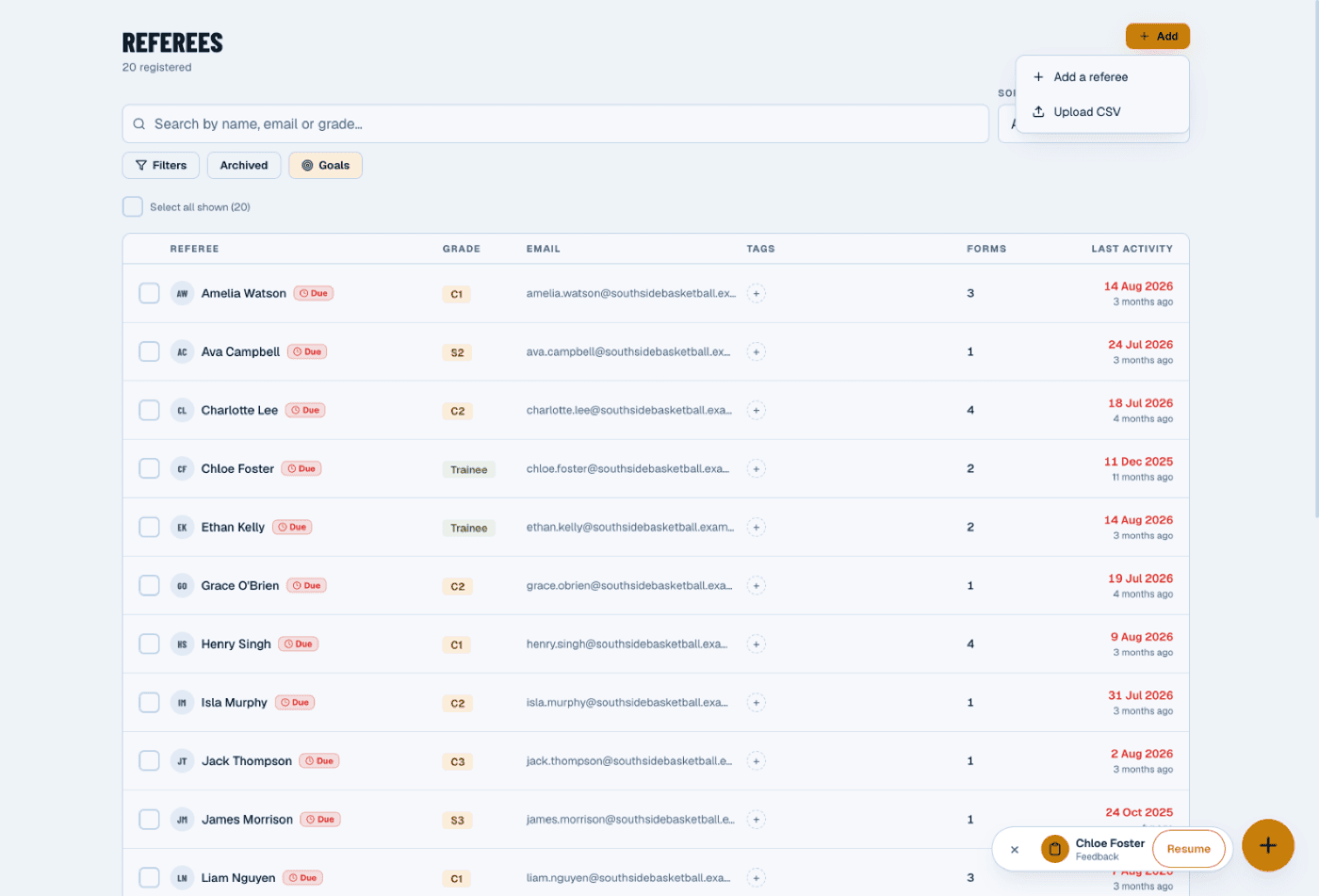
Choose Add a referee for one person, or Upload CSV for a whole list.
The Add Referee form
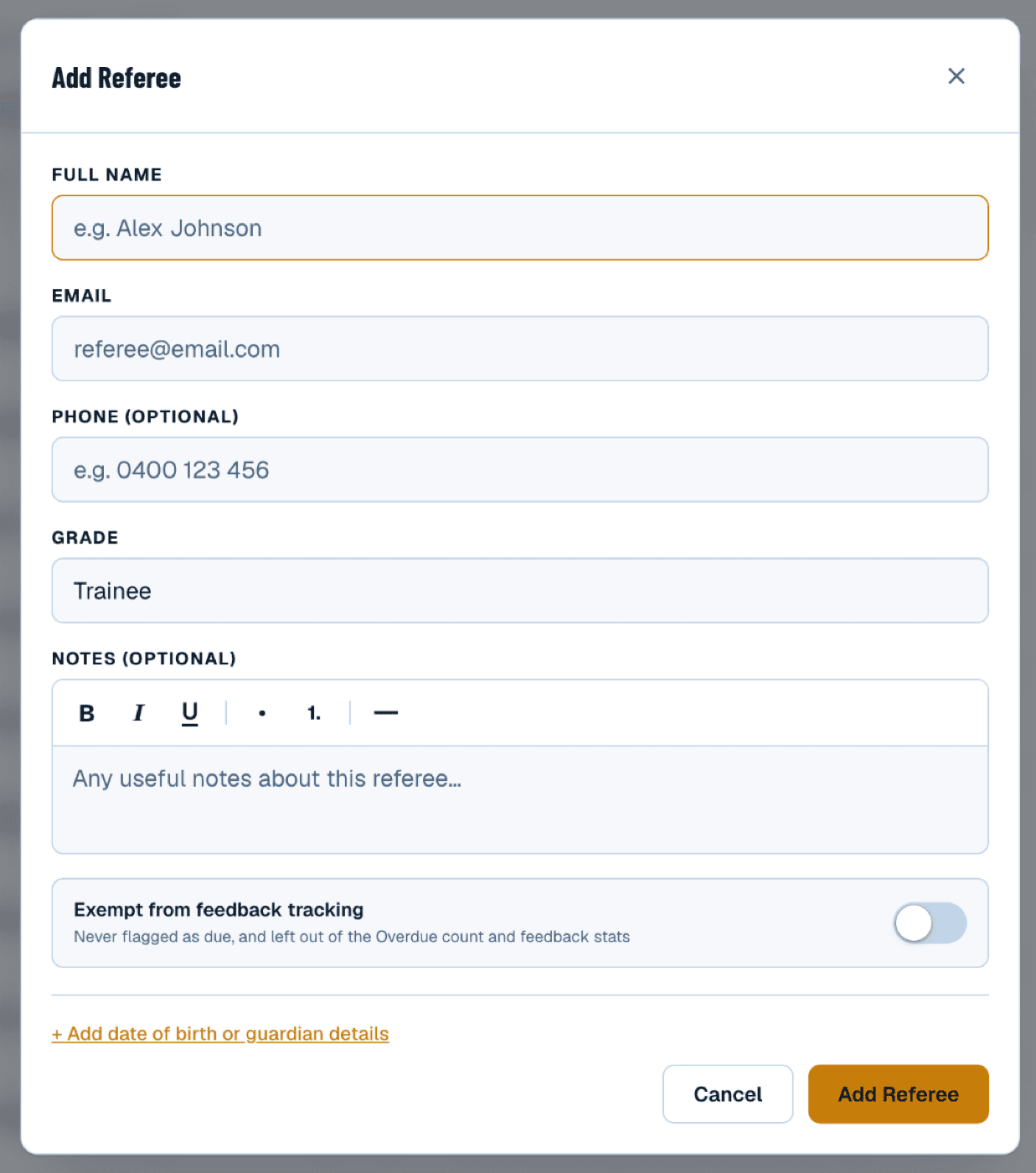
Enter a full name and an email address. Phone is optional.
The ten core grades are Trainee, C1, C2, C3, S1, S2, S3, N1, N2 and N3. If your organisation uses its own labels, such as C1+, add them under Org Settings → Feedback setup → Grading. They show only inside your organisation and never change the referee's core grade.
Under 18?
If you add a date of birth showing the referee is under 18, you can also add a guardian's details. While a referee is under 18, a guardian email on file is sent its own copy of each piece of feedback that is sent out, unless it is the referee's own address. The Privacy Policy explains exactly when the copies stop.
2. Add a whole list at once
Upload CSV takes a spreadsheet saved as a .csv file. Name, Email and Grade are required. Phone, date of birth, guardian name, email and phone, gender and suburb are optional. Dates can be DD/MM/YYYY or YYYY-MM-DD. Use Download template to start from the right columns.
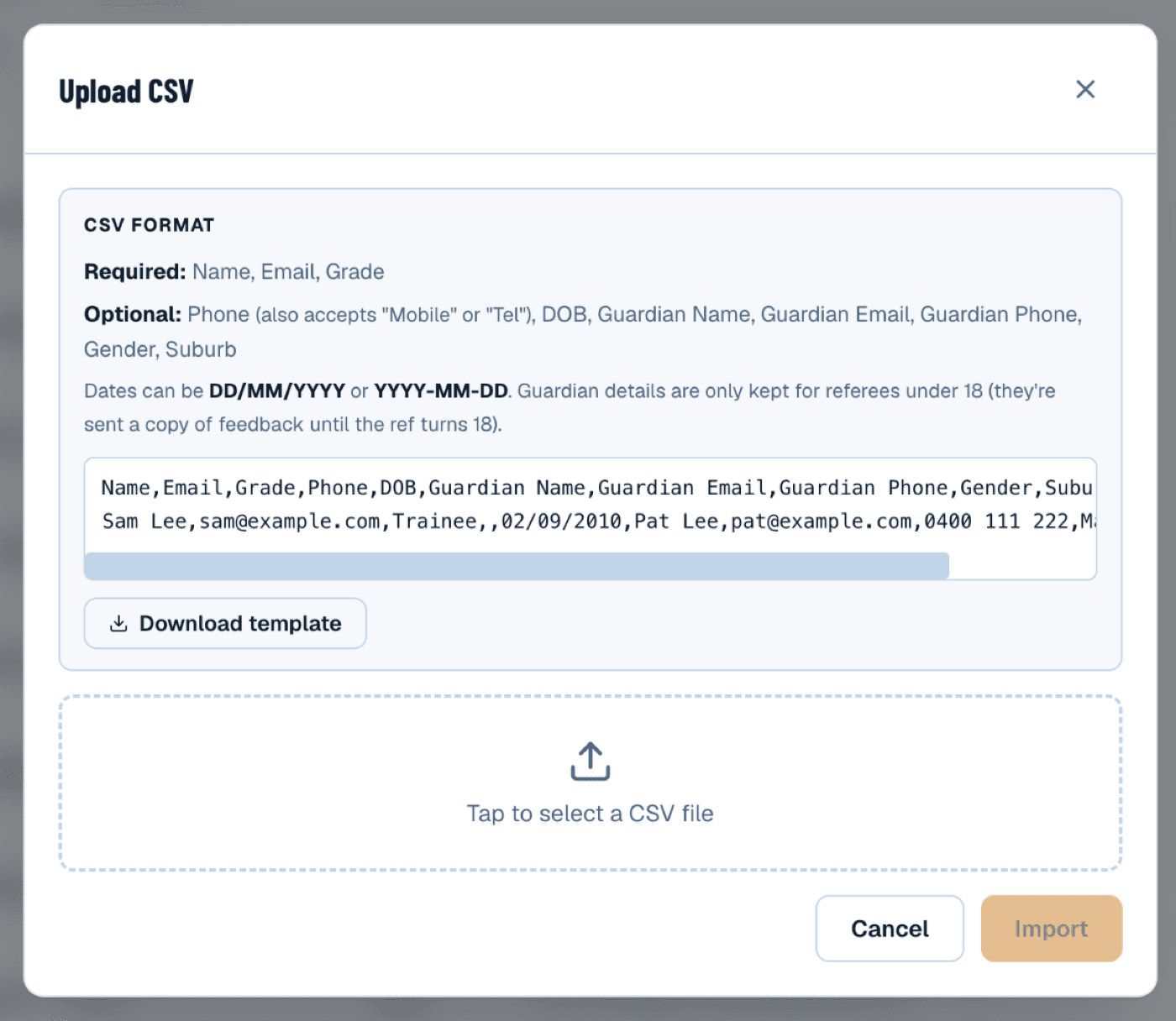
Download the template, fill it in, then select the file. Import switches on once a file is chosen.
3. Bring in your educators
Educators are the people who write feedback. Open Admin → Educators to see who can submit feedback and who can manage your organisation.
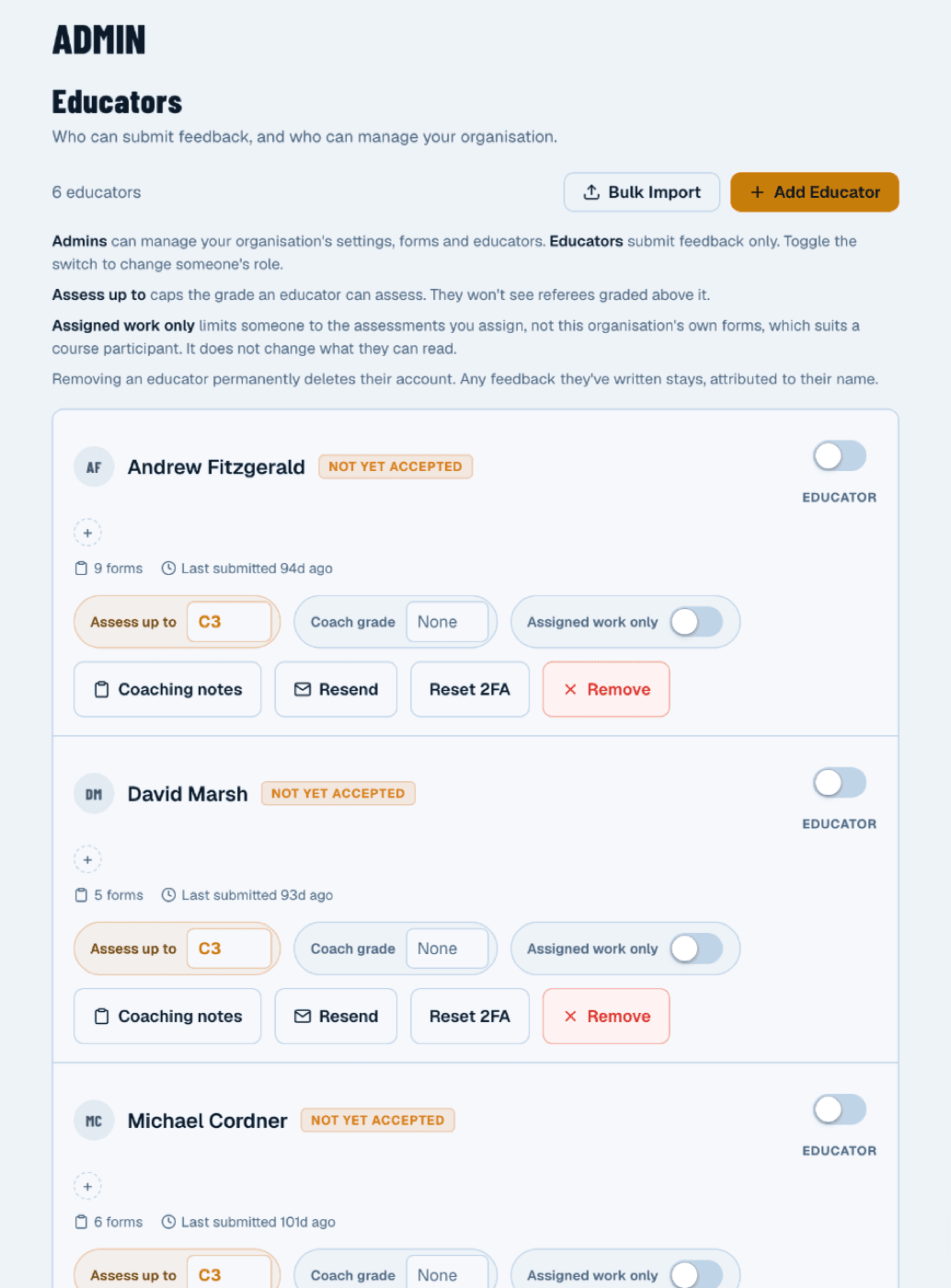
Add Educator sends an invite, Bulk Import brings in a list, and Assess up to caps the grade each educator can assess.
- Admins manage your organisation's settings, forms and educators. Educators submit feedback only. A toggle on each person changes their role.
- Assess up to caps the grade an educator can assess.
- Assigned work only limits someone to the assessments you assign them, which suits a course participant.
- Removing an educator deletes their account permanently, but the feedback they wrote stays under their name.
To invite one person, choose + Add Educator, enter their name and email, and tick Admin access only if they should manage referees, grades and educators. If they are new they get an email with a setup code. If they already have a RefereeHub account, they are simply added and told.
You can also change what your organisation calls them: Educators, Supervisors, Assessors, Evaluators, Coaches, Mentors, Observers or Instructors. The setting is under Org Settings and applies everywhere the app names these people.