
Every assessment starts the same way, from any screen in the app. This guide follows the Standard Feedback Form. The other forms in your list, such as the grade assessment forms, work the same way with their own questions.
1. Open a form from anywhere
The round amber + button sits at the bottom right of every screen. Tap it and the forms your organisation has switched on slide out: the Standard Feedback Form, any grade assessment forms, Quick Notes, and Report issue. Which forms you see is set by your admins.
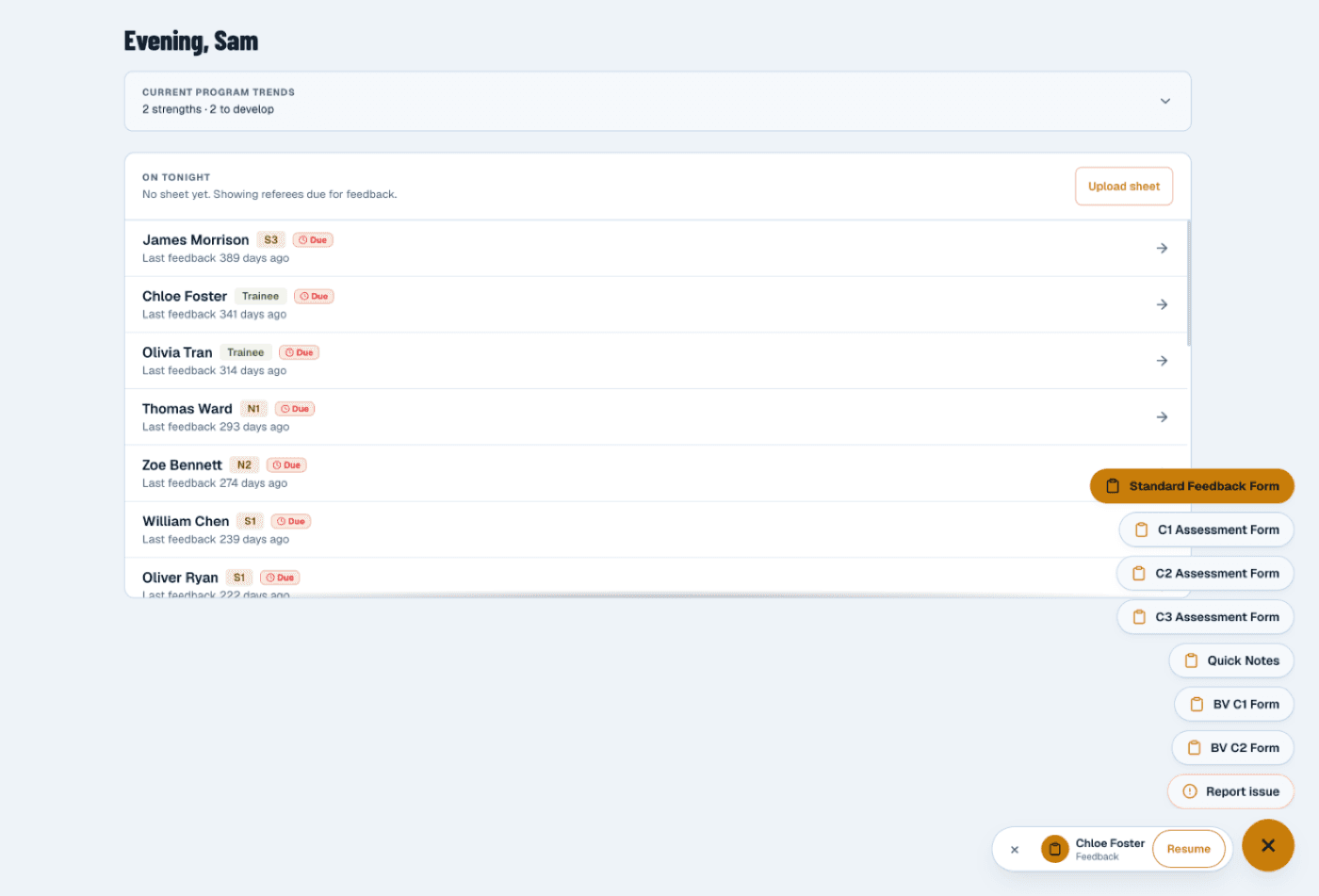
Tap the + button, then choose a form. The list is set by your organisation.
2. Fill in the form
Work down the form once you have it open. The title line tells you who it is for: "The referee will see your written feedback and scores."
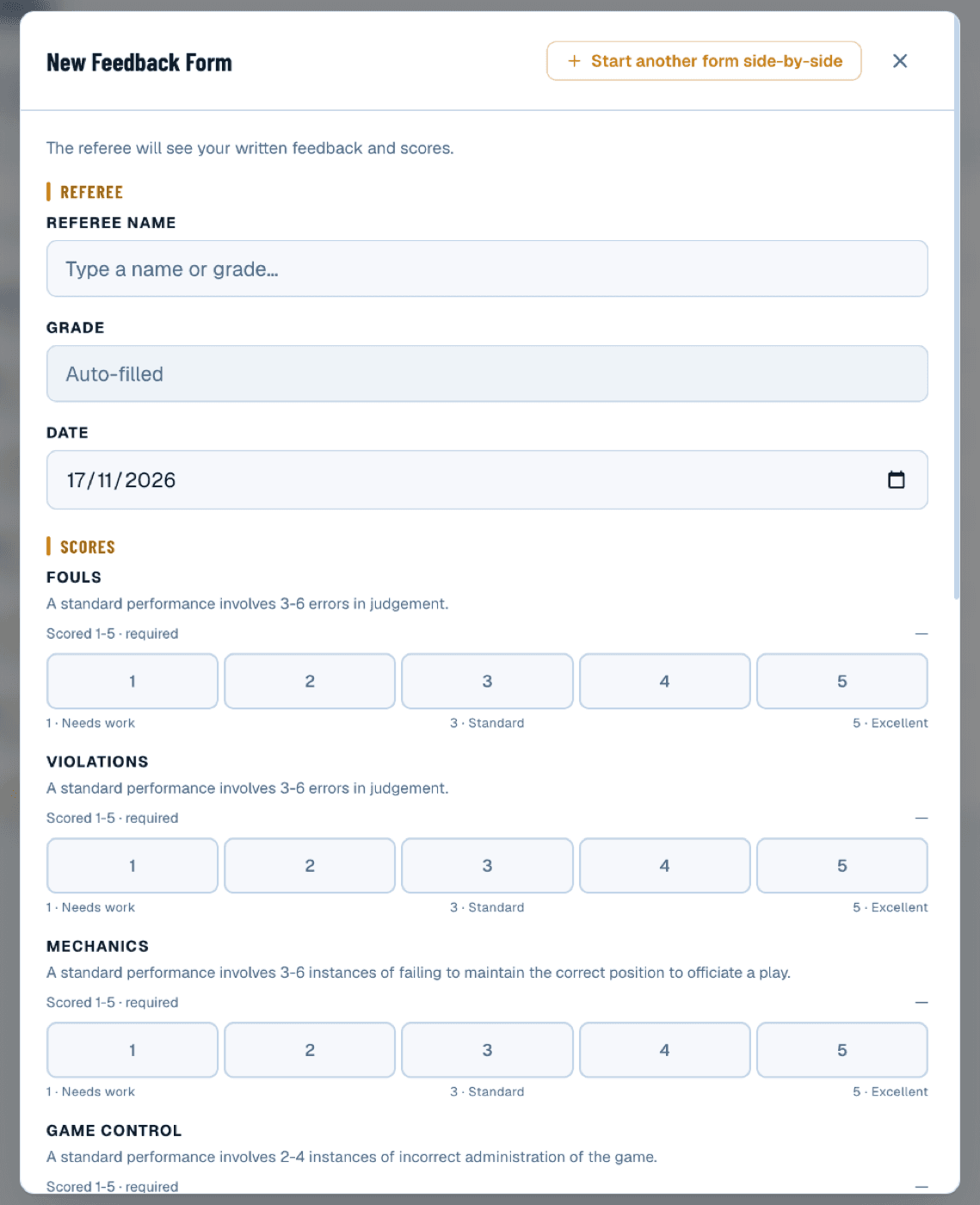
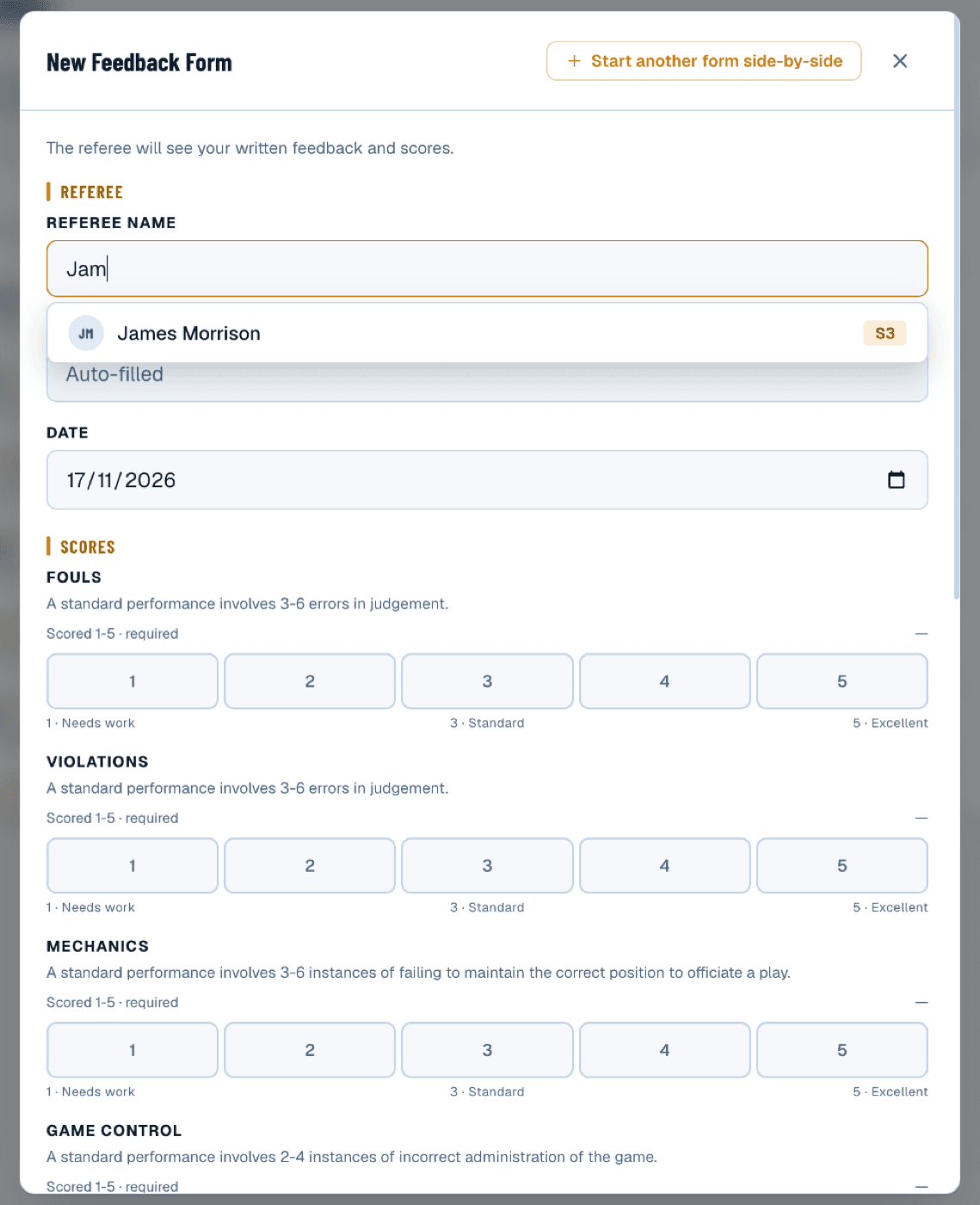
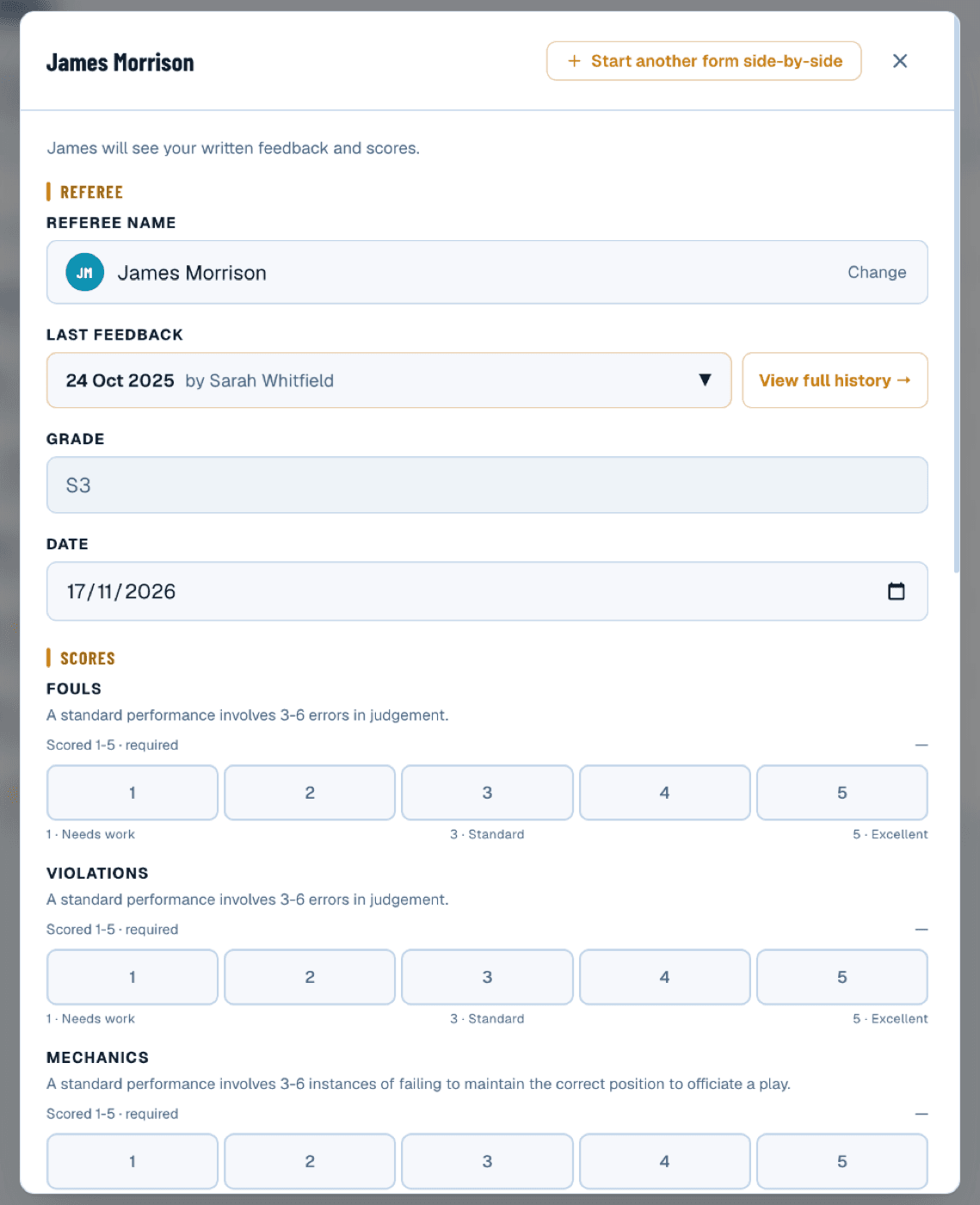
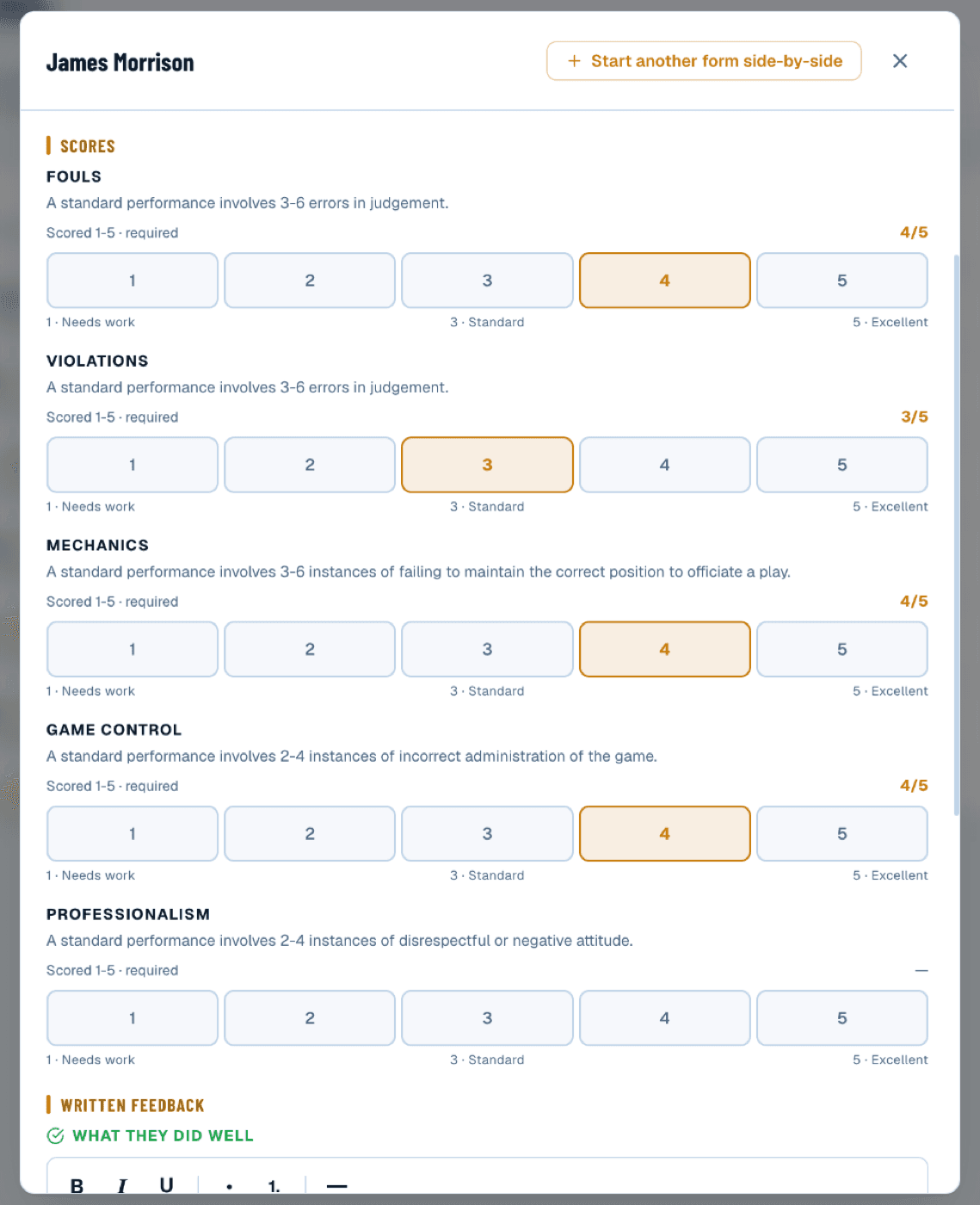
Start with the referee name. Grade fills in by itself and the date defaults to today.
The five pillars
Each form scores the same five pillars: Fouls, Violations, Mechanics, Game Control and Professionalism. Every pillar shows a short description of a standard performance, and the buttons are labelled 1 for Needs work, 3 for Standard and 5 for Excellent. Each one is marked required.
Written feedback
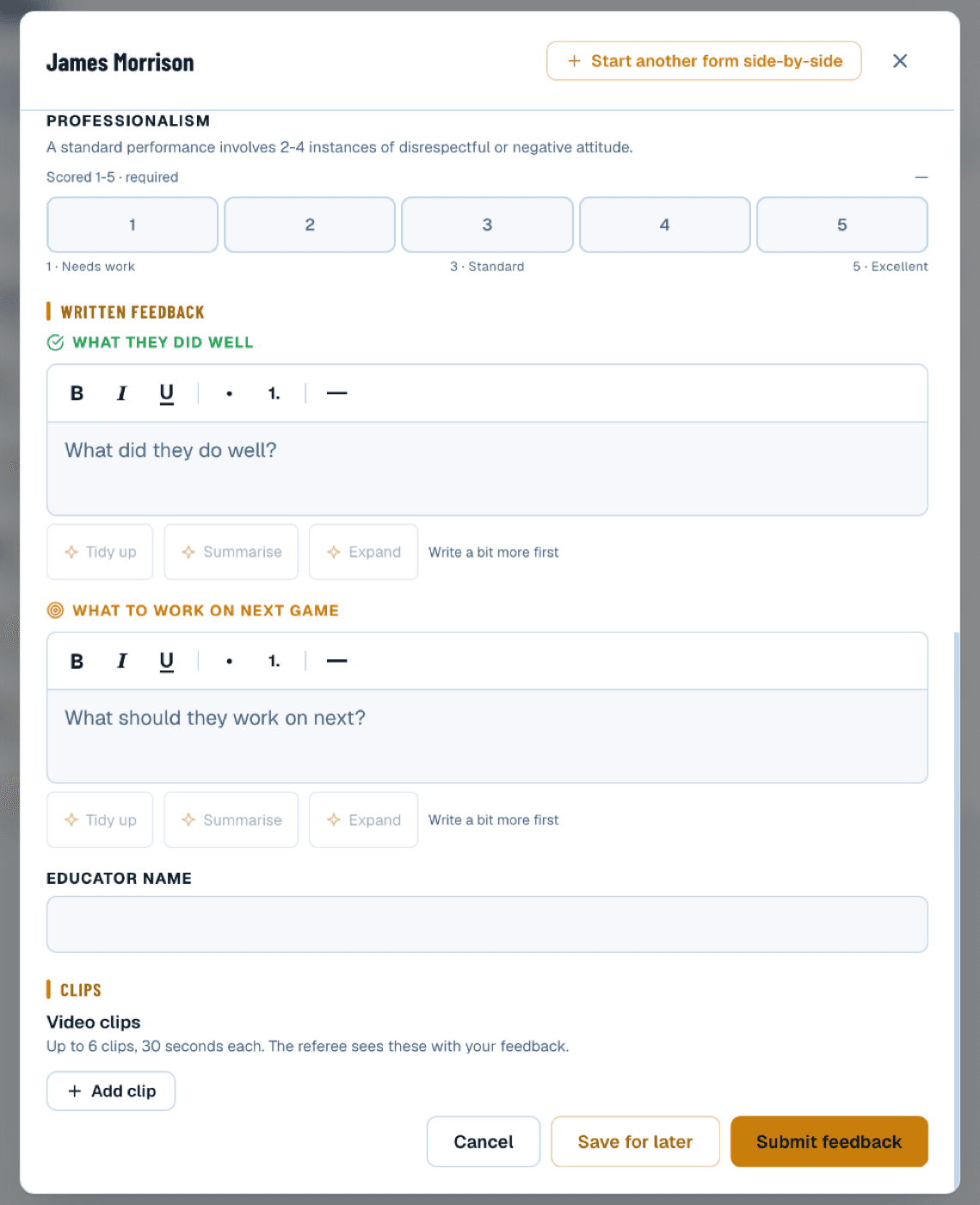
There are two boxes: What they did well and What to work on next game. Both take simple formatting, such as bold, bullets and numbered lists.
Under each box are three AI helpers, Tidy up, Summarise and Expand. They switch on once you have written a bit. They work on your own text, and only when you press them.
Video clips
You can attach up to 6 clips of 30 seconds each, and the referee sees them with your feedback. Clips are kept for 12 months and then deleted. Only upload footage you have the right to share.
3. Save it, send it, or run two at once
The footer has three buttons: Cancel, Save for later and Submit feedback. If you close a form that has entries in it, the app asks what to do with them, so a stray tap never loses a game's notes.
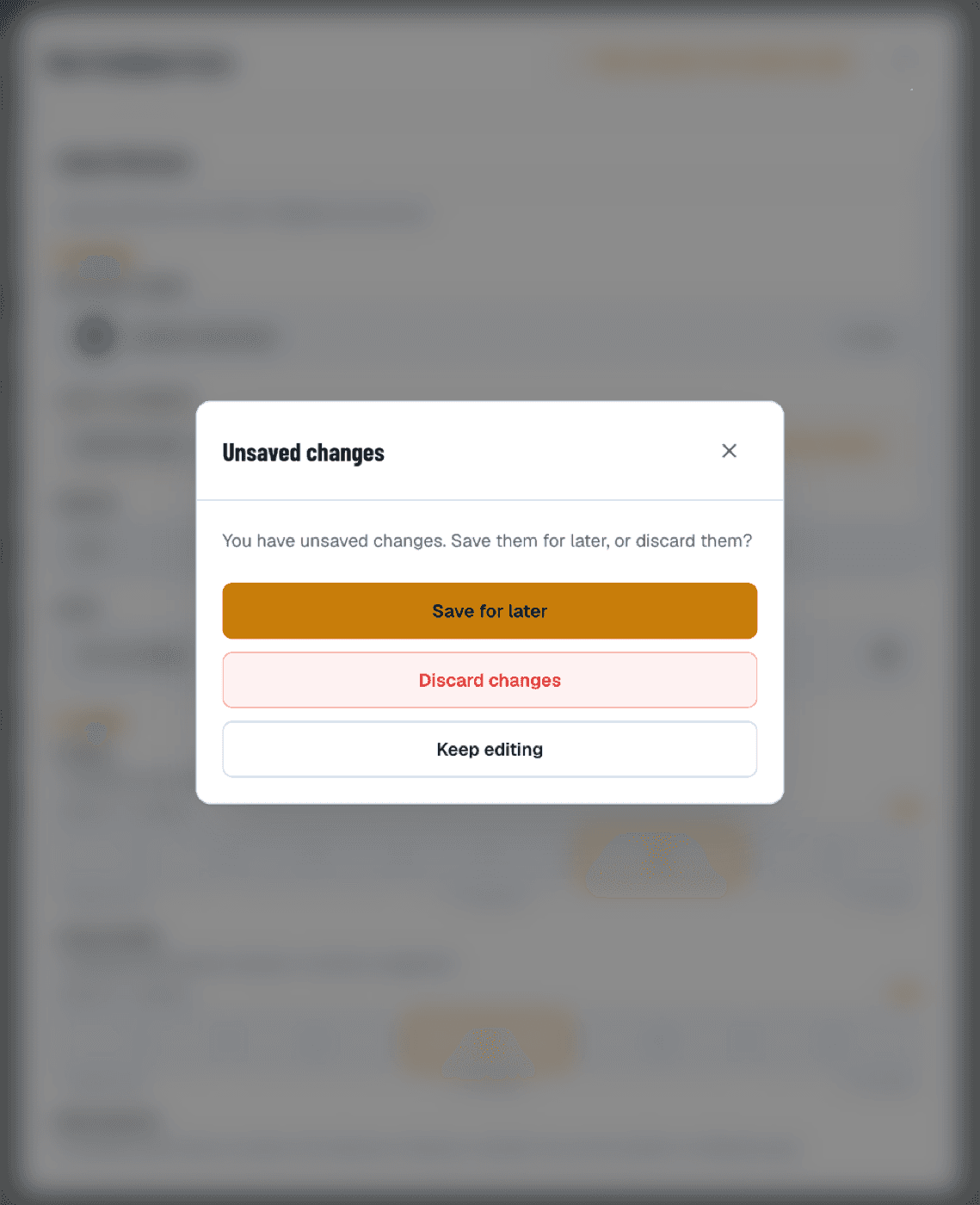
Choose Save for later to keep it as a draft, Discard changes to drop it, or Keep editing.
Two forms side by side
If you are watching two referees in the same game, use Start another form side-by-side at the top of the form. A second form opens next to the first, each with its own close button.
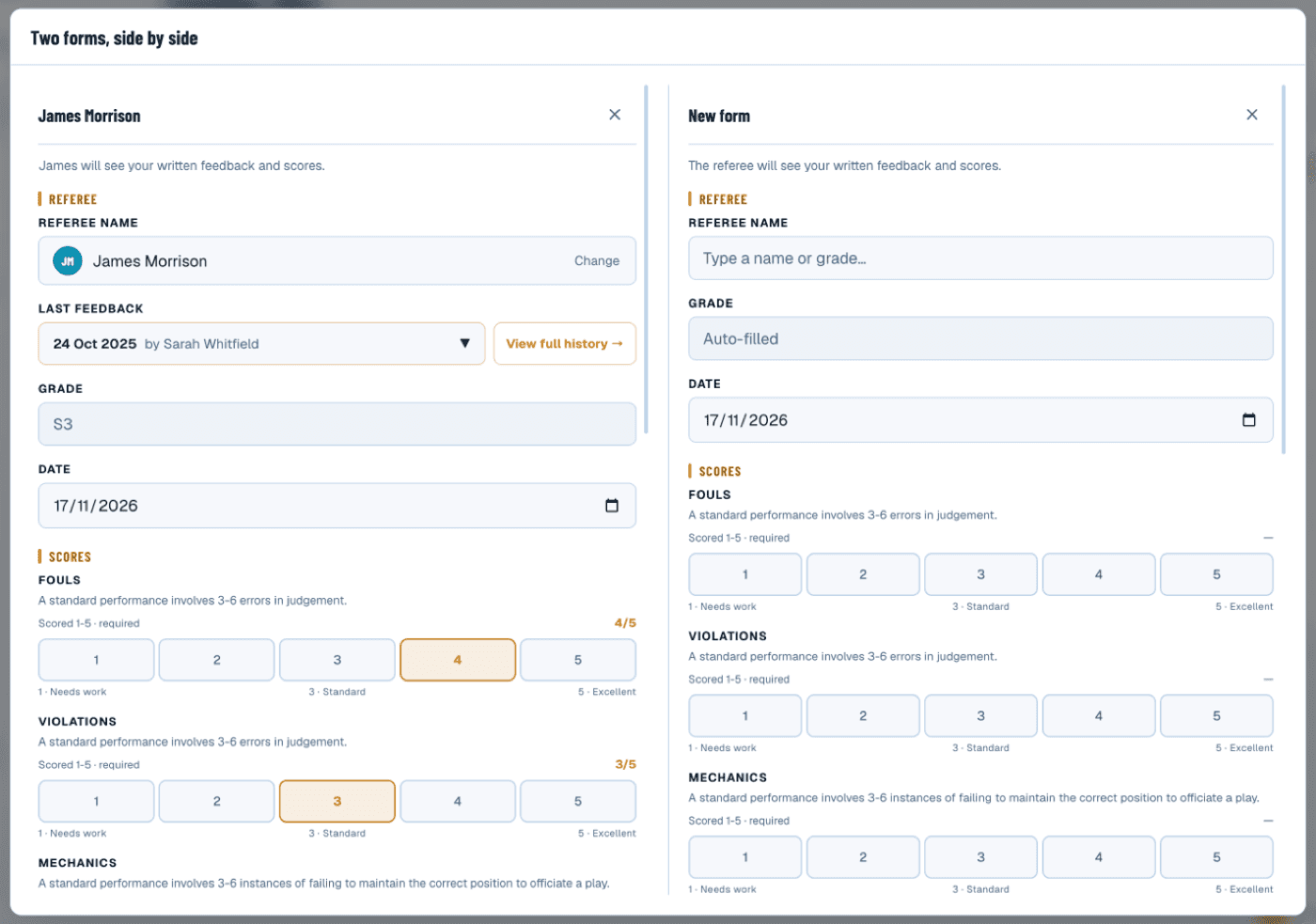
Both forms stay open together, so you can score two referees without switching screens.
What happens next
Once feedback is approved, the referee is told that something new is ready and reads it after signing in. If your organisation holds feedback for approval, an admin reviews it first. See Control what referees see and when for how that works.